FeedMe Watch
This book is dedicated to the user manual of the FeedMe watch application. Currently, only available on Apple Watch.
User Manual
General Information
Use this manual to get started with the FeedMeWatch
Welcome to the FeedMeWatch User Manual
If you're new to the FeedMeWatch app, this page will give you a quick overview of the different functionalities of the app from how to download the Beta testing version through Test Flight to the Feedback function.
The content of this User Manual is updated before the release of a new version. However, if you see anything that does not seem up-to-date, please contact the development team.
Requirements
To use the watch app, it is recommended to use WatchOS 10 and iOS 17. This will provide the best user experience. The Interface has been optimised for Series 8, Series 9 and SE. No other Apple Watch versions were tested.
Contact
Please contact us, if you experience any issues. I will recommend using the internal Feedback option from TestFlight but you are also more than welcome to write to me.
Proposition for new functionalities
You are more than welcome to share your ideas to improve the app and add functionalities.
TestFlight Installation
The Beta testing works through an invitation from TestFlight. Once added to the testing group by our team, you will receive an email invitation. Then, you can add the Beta testing application to the TestFlight App on your iOS device.
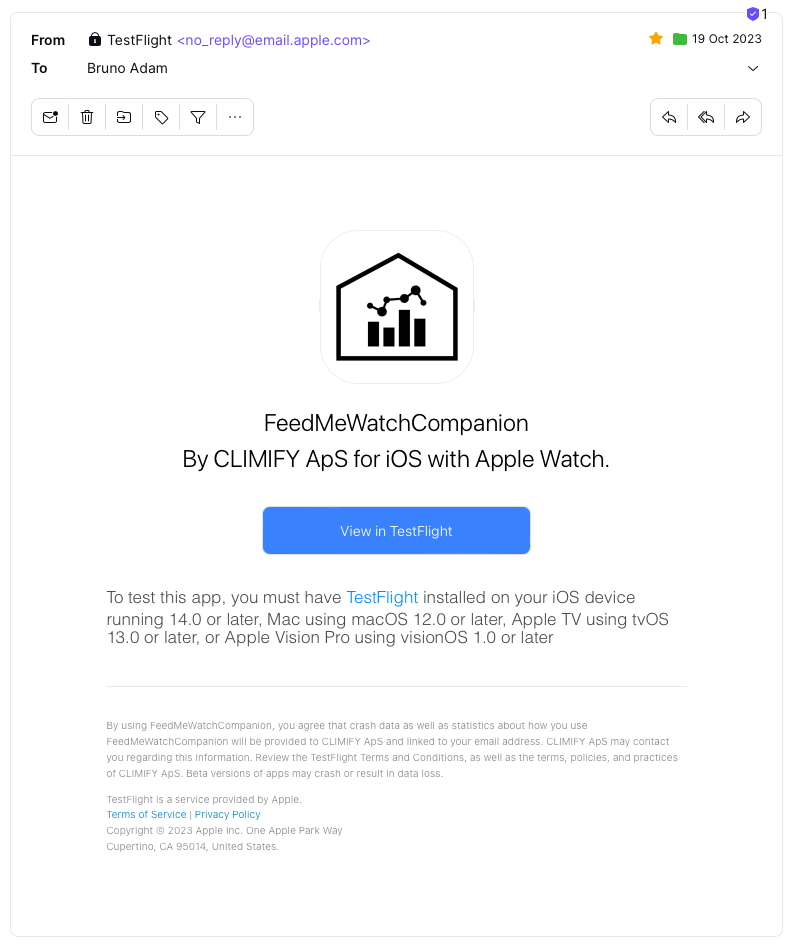
Email for the invitation to beta test the Apple Watch application.
After adding it on TestFlight, you are allowed to add the app on your iPhone.
- Install the app;
- Click on the app icon;
- Enable the app on the Apple Watch.
Note that on TestFlight, there is a description of what should be tested for each version/build. We recommend you also enable the automatic update. If you want to give feedback or if you notice a bug, please send beta feedback. The option on TestFlight is used to gather the feedback and crashes.
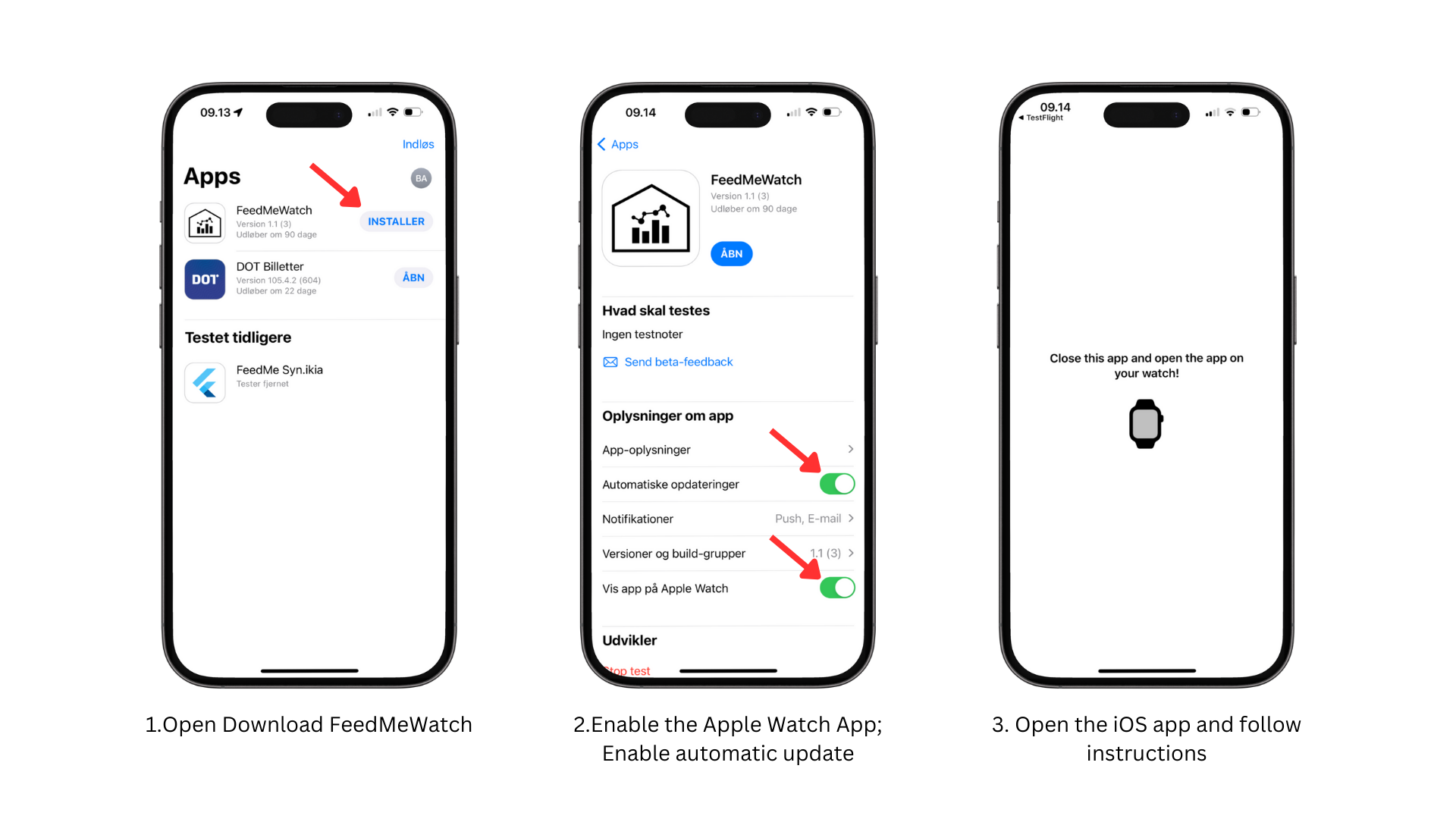
TestFlight Installation.
Onboarding on the Watch App
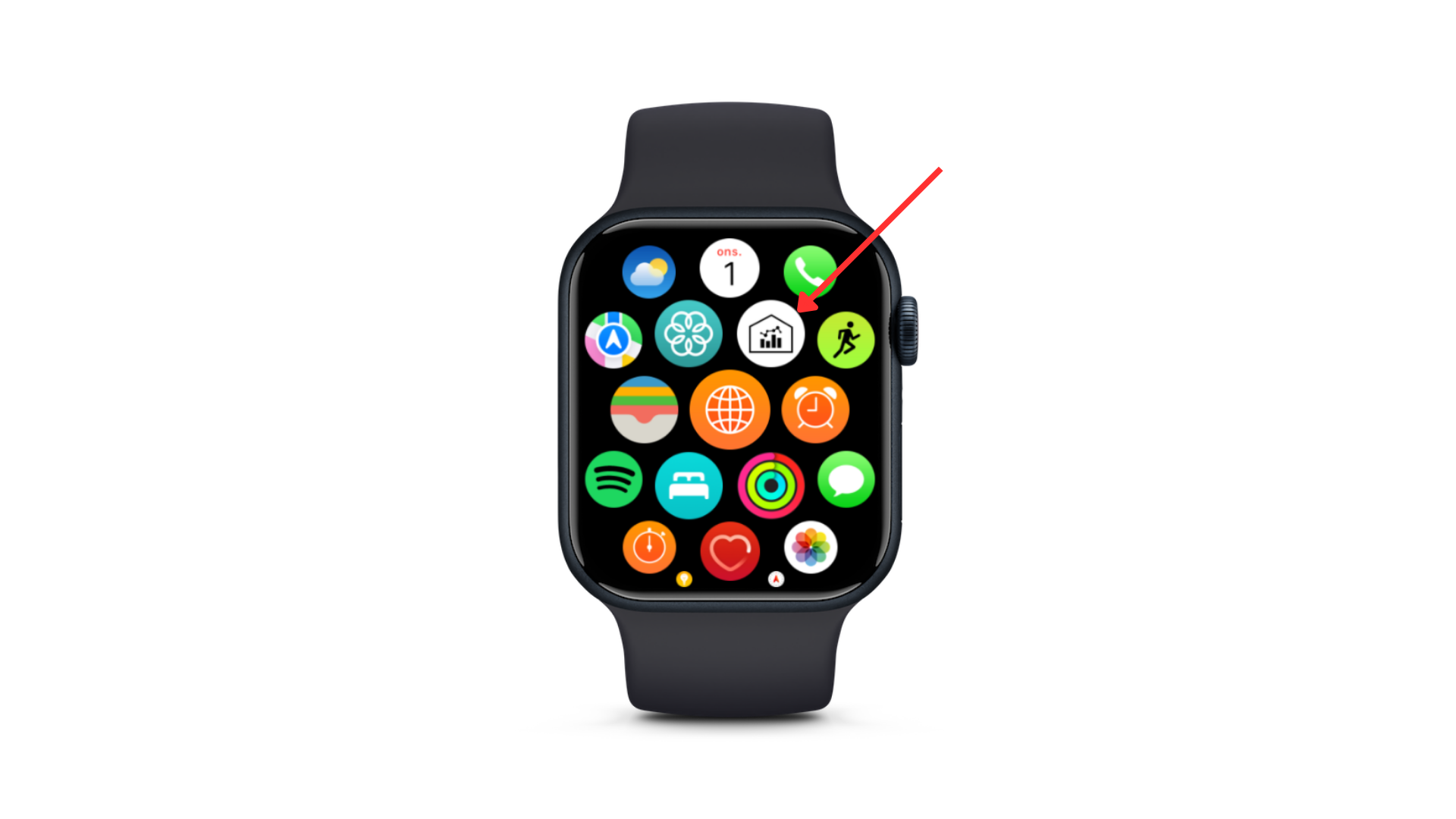
After the completion of the TestFlight Installation, you will be able to see the App on your WatchOS menu. When you press the digital crown, you access the menu as shown in the figure below.
The first time you open the app, you need to log in by following the instructions in the figure below.
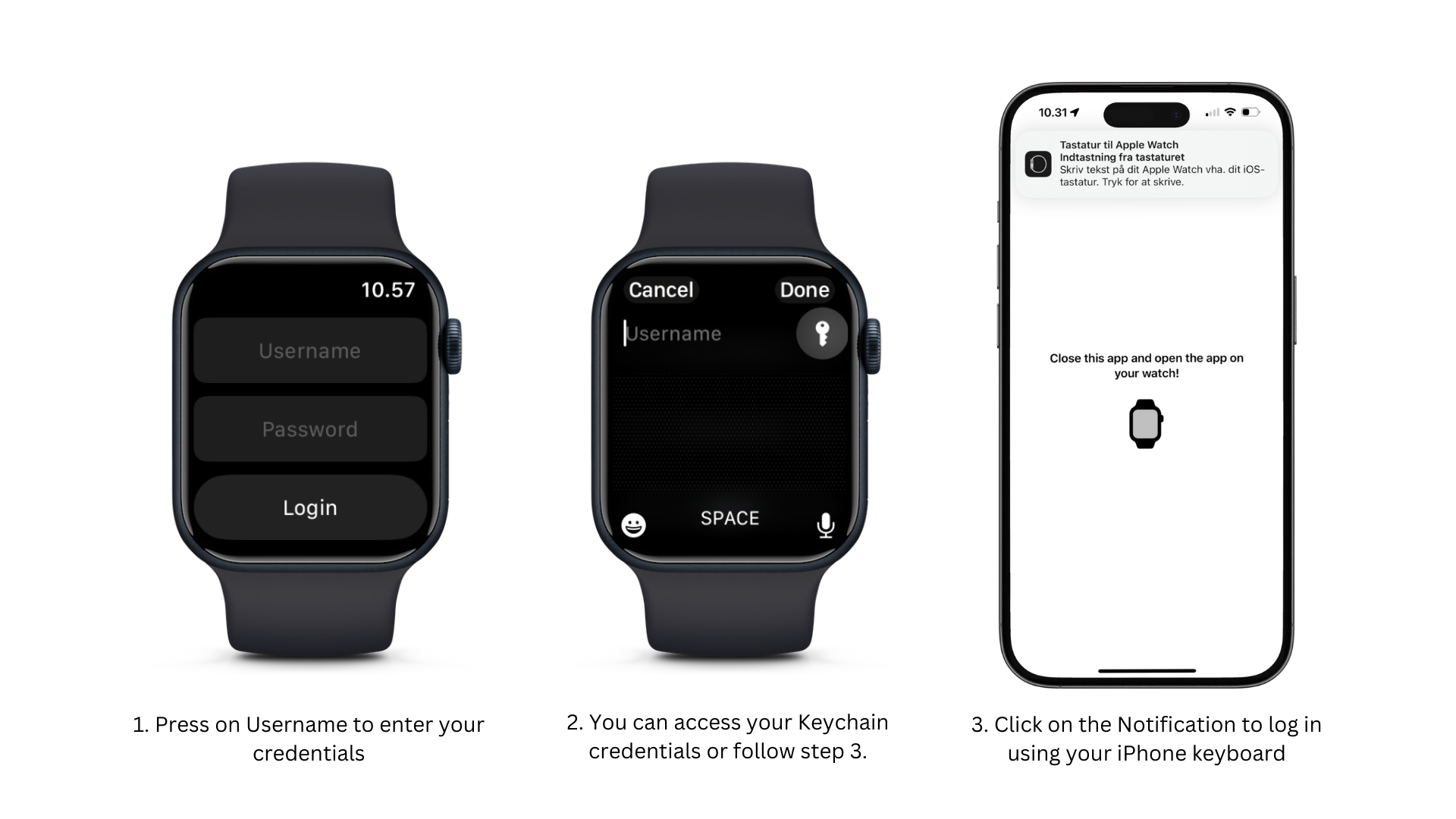
Use your phone to log in.
If succeed, you should see your entry appearing in real time on your watch.
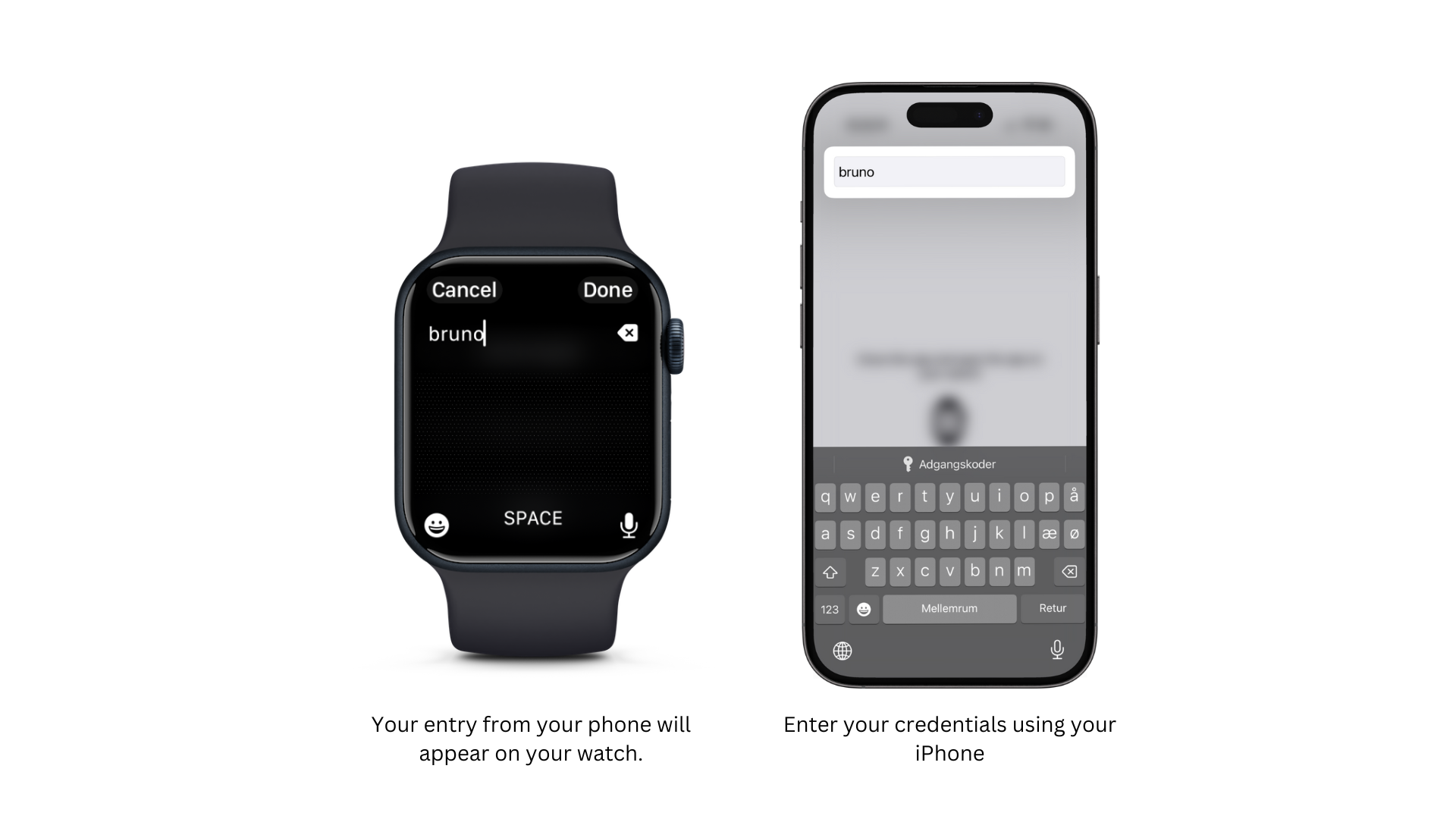
Watch Interface while on your phone
Once log in, you will be able to submit your first Feedback through the app.
Submit Feedback
The following figures describe how to submit your first feedback:
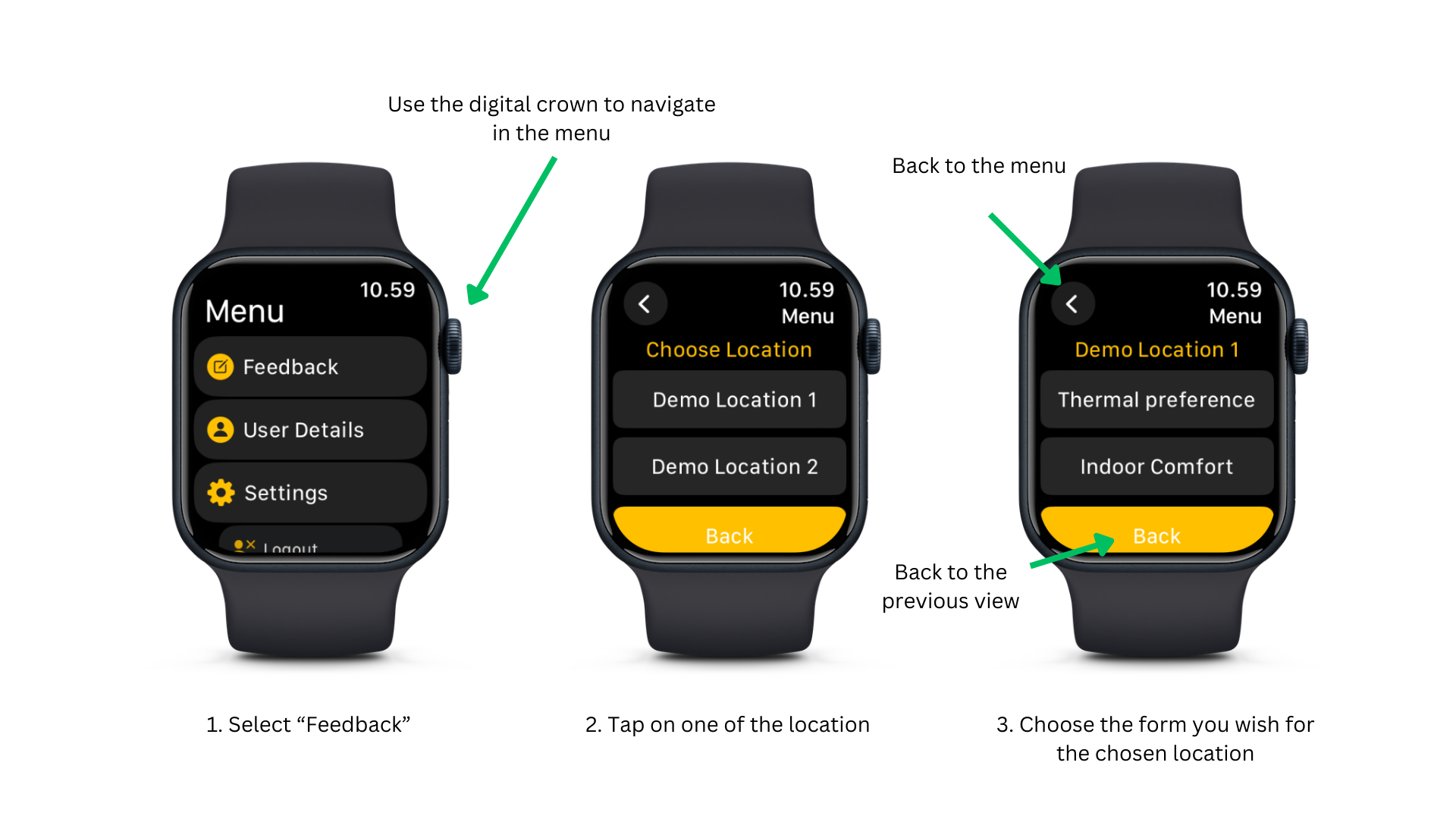
Submit your feedback, select your location and survey type
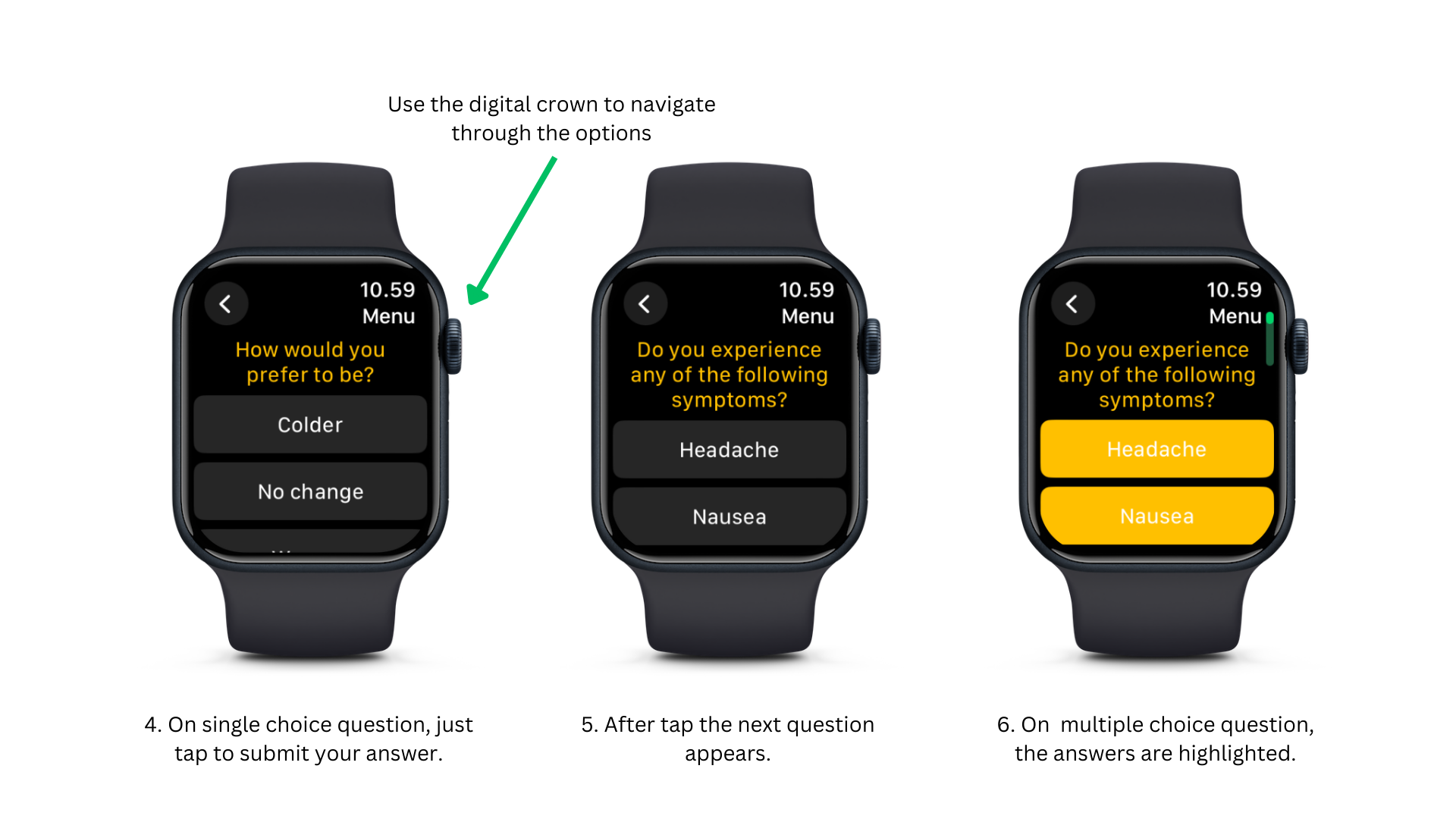
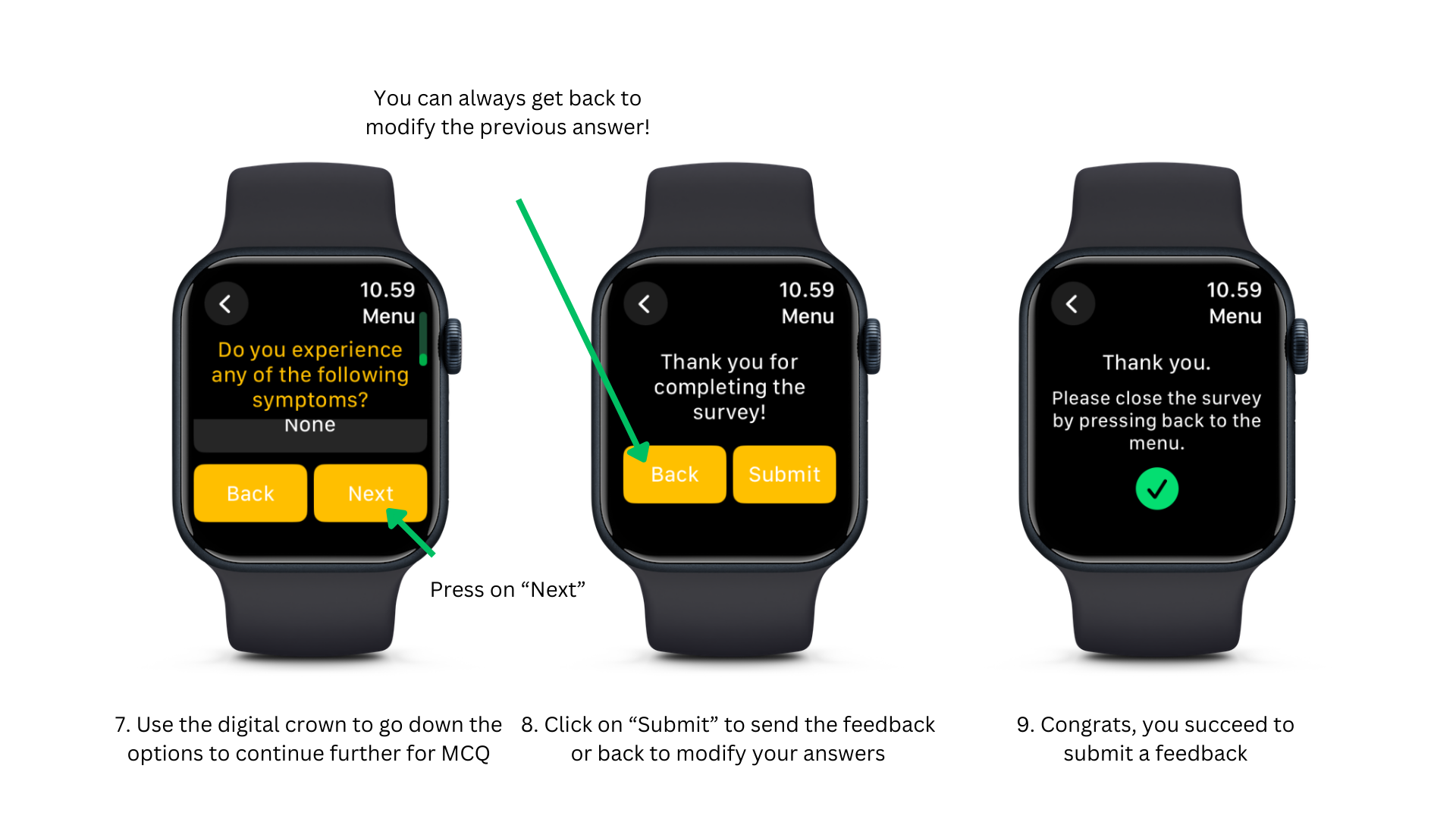
Submit the feedback
Check your User Details
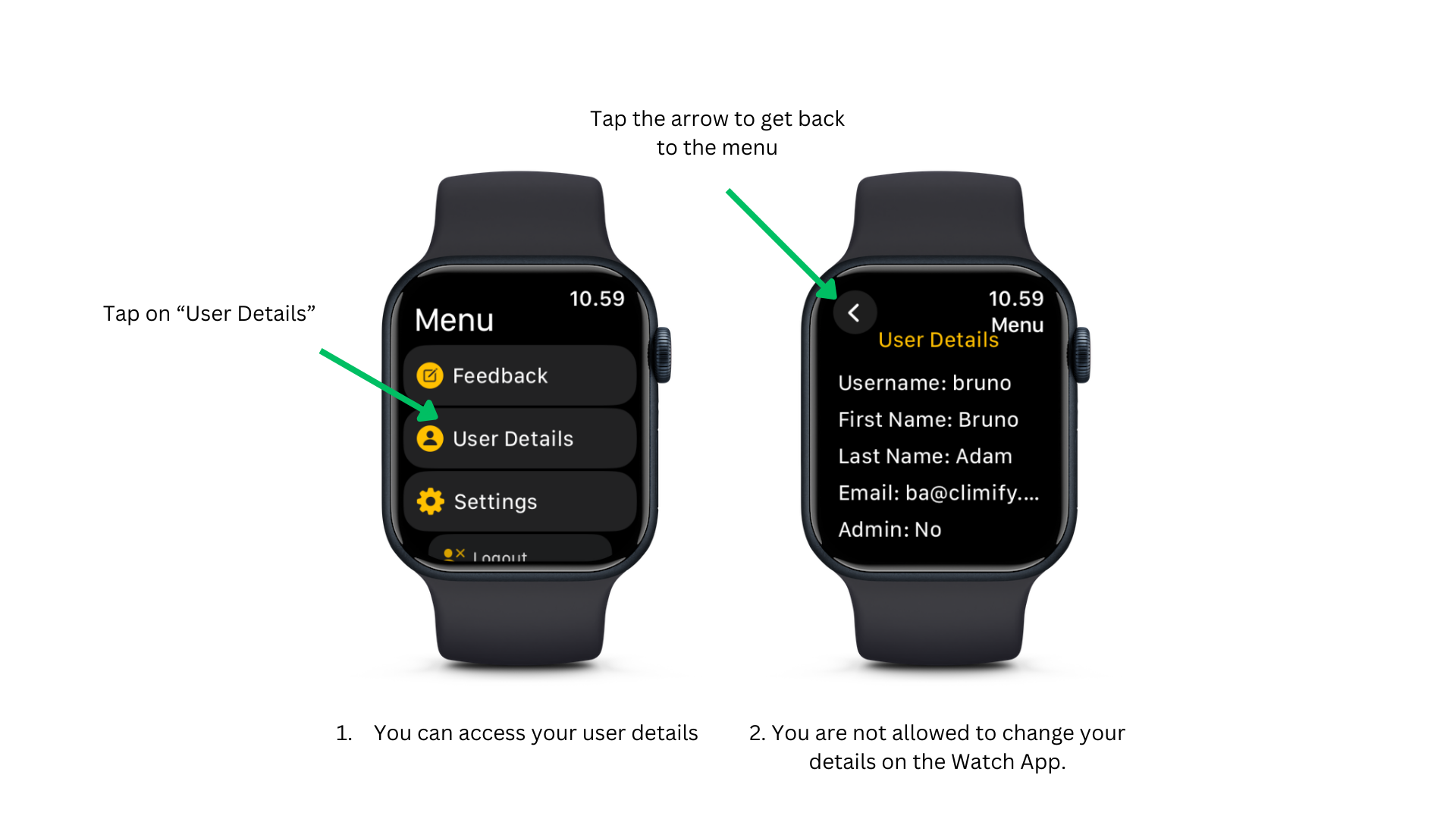
Consult your User details
Change the settings
Version 1.1 only allows you to change the accent colour. The accent colour is the colour that highlights your icons and buttons in the app. You can change it as you wish in the settings.
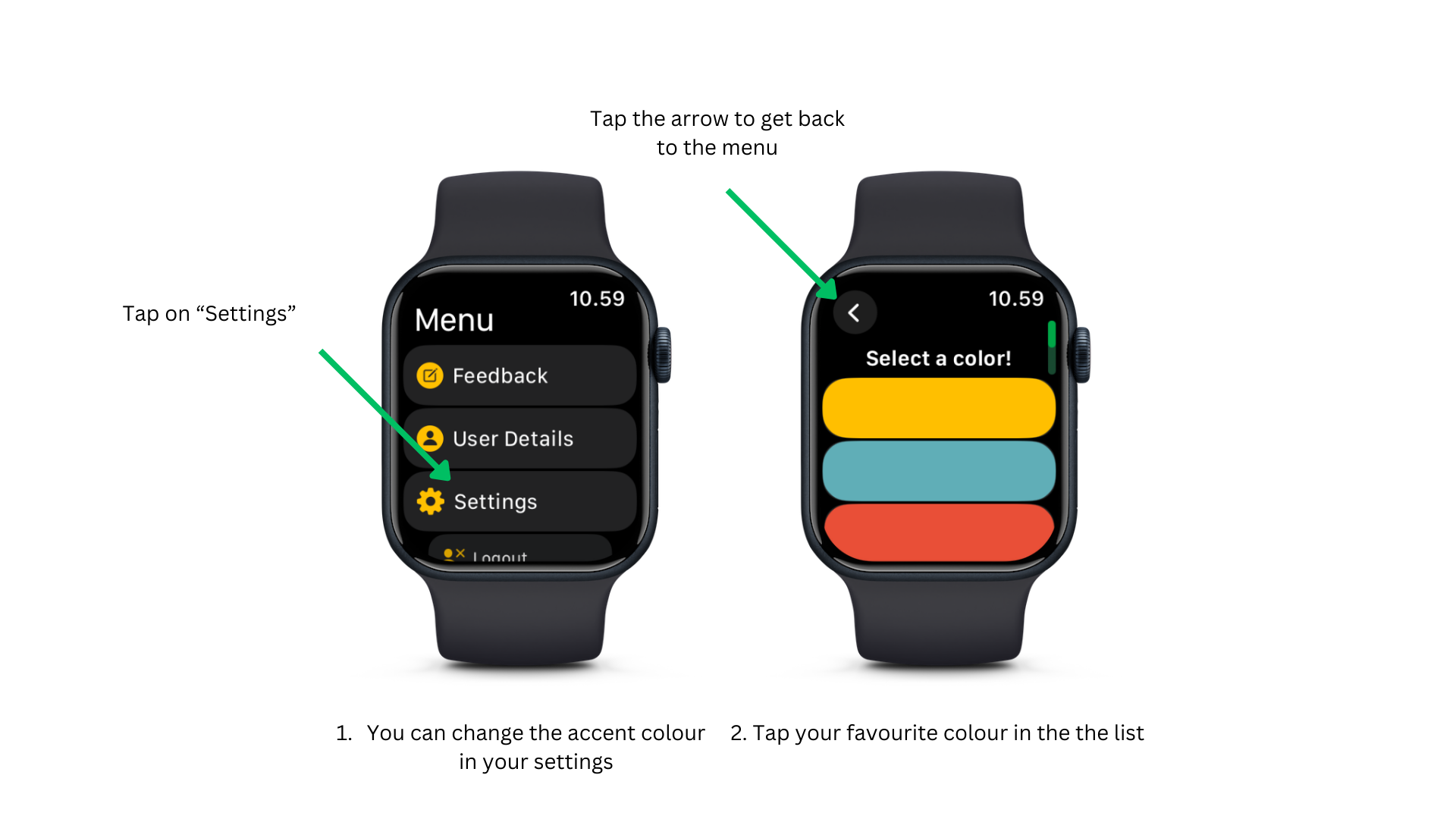
Change the Accent Colour